

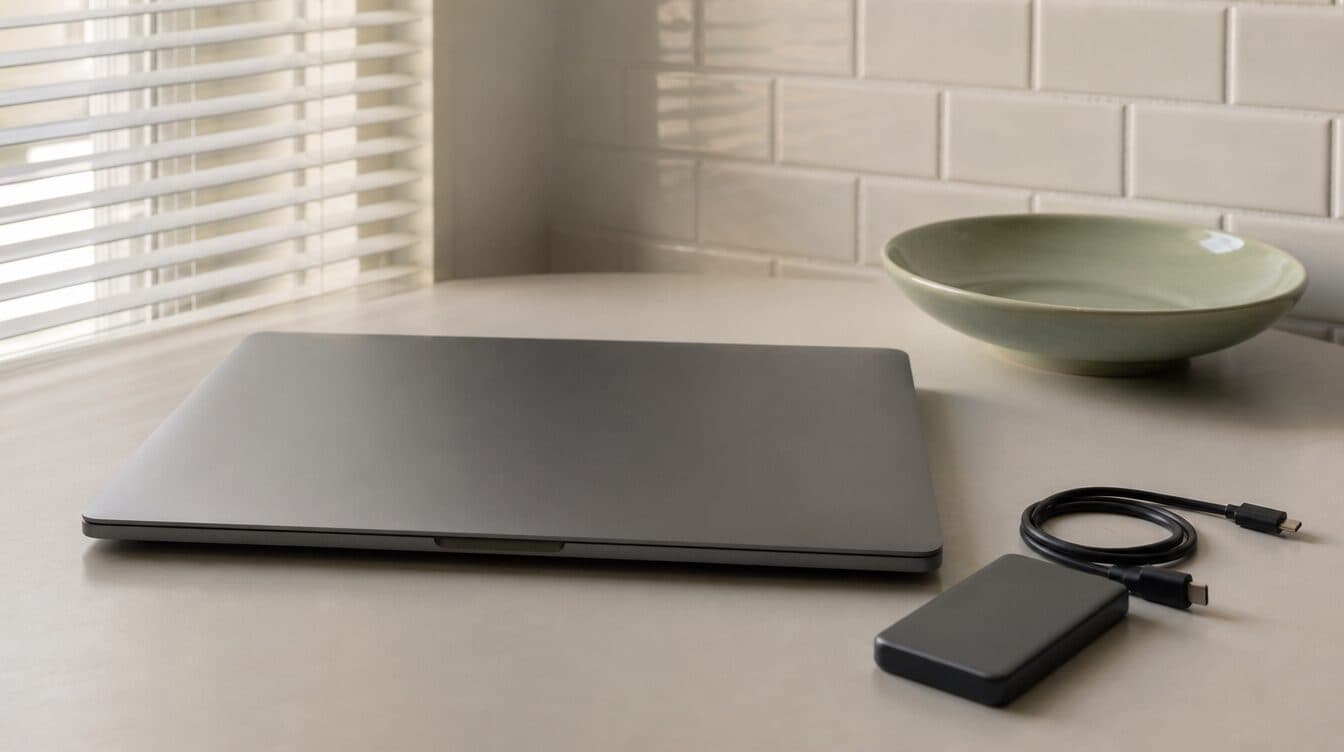
A laptop that will not start can feel urgent—especially when family photos, work files, or account information may be on it. Before trying a string of random fixes, it helps to slow down and protect the data that may still be recoverable.
For Spring Valley households and small businesses, the practical first step is to separate two questions: is the problem with power or startup, and is there a reason to avoid putting more stress on the drive? A mobile technician can assess the computer where you use it, along with the charger, external drive, printer, and network devices that may be part of the situation.
Start with the simple, low-risk checks
Check that the outlet, power strip, charger, and cable are firmly connected. If the battery is removable, do not force anything. Look for obvious signs such as a charging light, fan noise, or a screen that is on but too dim to see. If the computer is a desktop, make sure the monitor and its cable are connected and powered separately.
These checks can help distinguish a display or power issue from a startup problem. They do not prove what is wrong inside the computer, and repeated forced restarts are not a good substitute for diagnosis when important files are involved.
When to stop trying fixes on your own
If the laptop makes unfamiliar clicking or grinding sounds, starts and immediately shuts down, shows a repair screen repeatedly, or will not recognize an external drive it used before, pause before installing recovery software or resetting the device. A reset, reinstall, or rushed file transfer can change what is stored on the computer. The right next step depends on whether the files are already backed up and what the device is doing now.
Know where your important files live
Before any repair begins, make a short list of what matters most: documents, photos, desktop files, browser bookmarks, email access, accounting files, and any folders saved outside the usual Documents or Pictures locations. If you use a cloud service, note which account it is tied to and whether the files are fully synced. A cloud icon on the screen is not, by itself, a guarantee that every file has finished uploading.
If the computer still starts, this is also a good time to check whether the external backup drive opens and whether the files you expect are actually there. If it does not start, avoid guessing at a recovery path. A technician can review the device and discuss the least disruptive option for the situation.
What an onsite data backup and recovery visit can cover
Matt provides mobile computer support in the Las Vegas Valley, including help with data backup and recovery, software setup, and hardware issues. During an on-site visit, the computer can be reviewed alongside the equipment you rely on at home or at work. That can make it easier to check a backup drive, a replacement computer, or a home WiFi connection without packing everything up for a shop visit.
For a Spring Valley appointment, the goal is to understand the current state first: whether the device powers on, whether the drive can be read safely, what backups exist, and what needs to be transferred or configured next. That is different from promising a result before the computer has been inspected.
A simple backup routine after the immediate problem is resolved
Once the computer is stable, a basic routine can reduce the stress of the next failure or replacement. Keep the operating system and important software updated, use a backup destination you can identify later, and periodically open a few backed-up files to confirm they are readable. If you have a new computer, plan the file transfer, email setup, printer connection, and network access together instead of treating them as separate emergencies.
You can also review Matt’s guidance on protecting photos and files in Las Vegas and the Spring Valley service area before scheduling. If the device is still responsive, write down any exact error message and what happened right before the issue started. That information can make the visit more efficient.
Need help with a laptop that will not start?
For onsite computer support in Spring Valley, book an appointment with Matt. Bring the laptop, its charger, and any backup drive into the conversation so the next step can be based on what you actually have—not on a guess.