

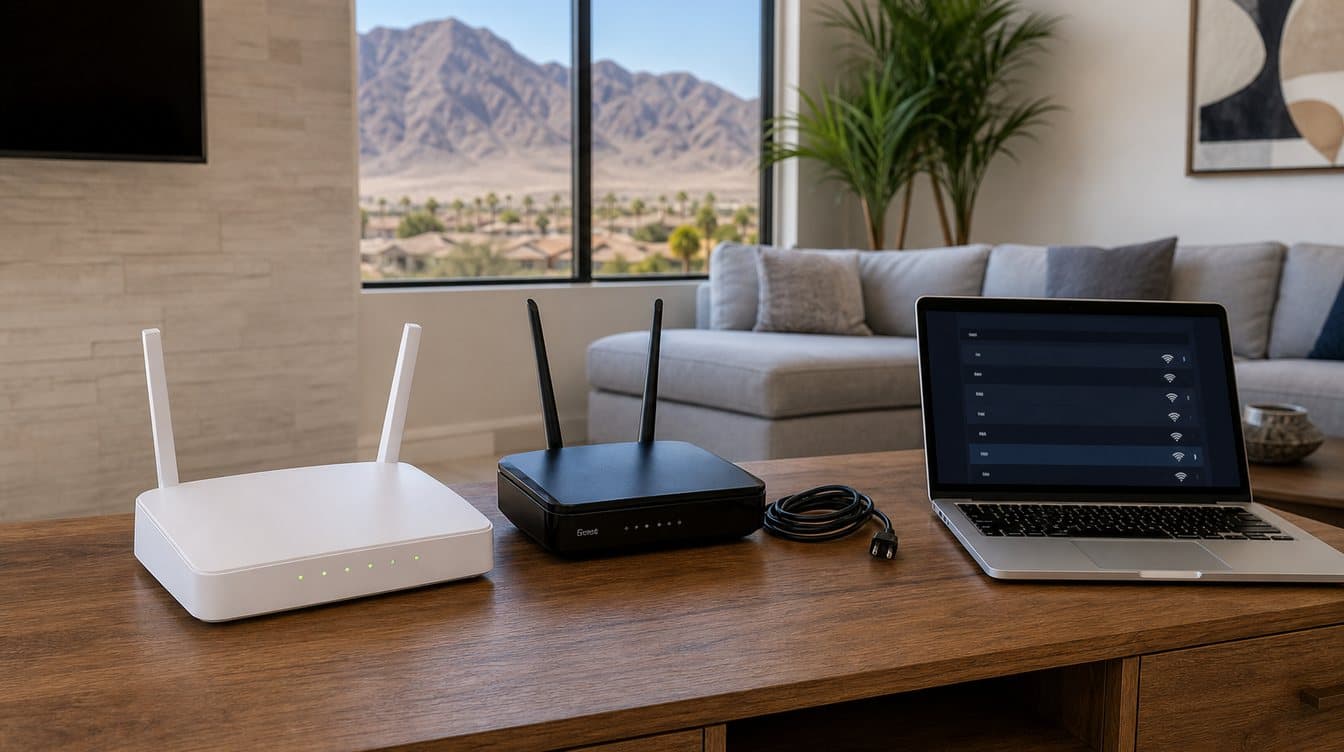
A new router arrives, or a new internet provider installs its own equipment, and the internet light turns green. Then the rest of the house starts to fall apart: the printer will not print, the smart TV asks for a password nobody remembers, the doorbell camera goes offline, and the thermostat app says “device unavailable.” For many Henderson households, the internet itself is fine. The problem is that every device in the home was set up to look for the old network. Here is how to plan the switch so your devices come back online with less frustration.
Why devices drop after a router change
Each device in your home remembers a Wi-Fi network by its name and password. When the new router broadcasts a different name, or the same name with a different password, phones and laptops simply show a list of networks and wait for you to choose. Devices without a screen, such as printers, smart plugs, cameras, and speakers, cannot do that. They keep searching for a network that no longer exists, and they usually have to be put back into setup mode through their own app or control panel.
New routers can also change settings that older devices depend on. Some combine their 2.4 GHz and 5 GHz bands under one name, use a newer security mode, or hand out a different range of addresses. A printer that a computer found at a fixed address may appear to be “offline” even though it is connected.
What to do before you switch
- Record the old network name and password. They are often printed on a sticker on the old router, or saved in your router’s app if you changed them.
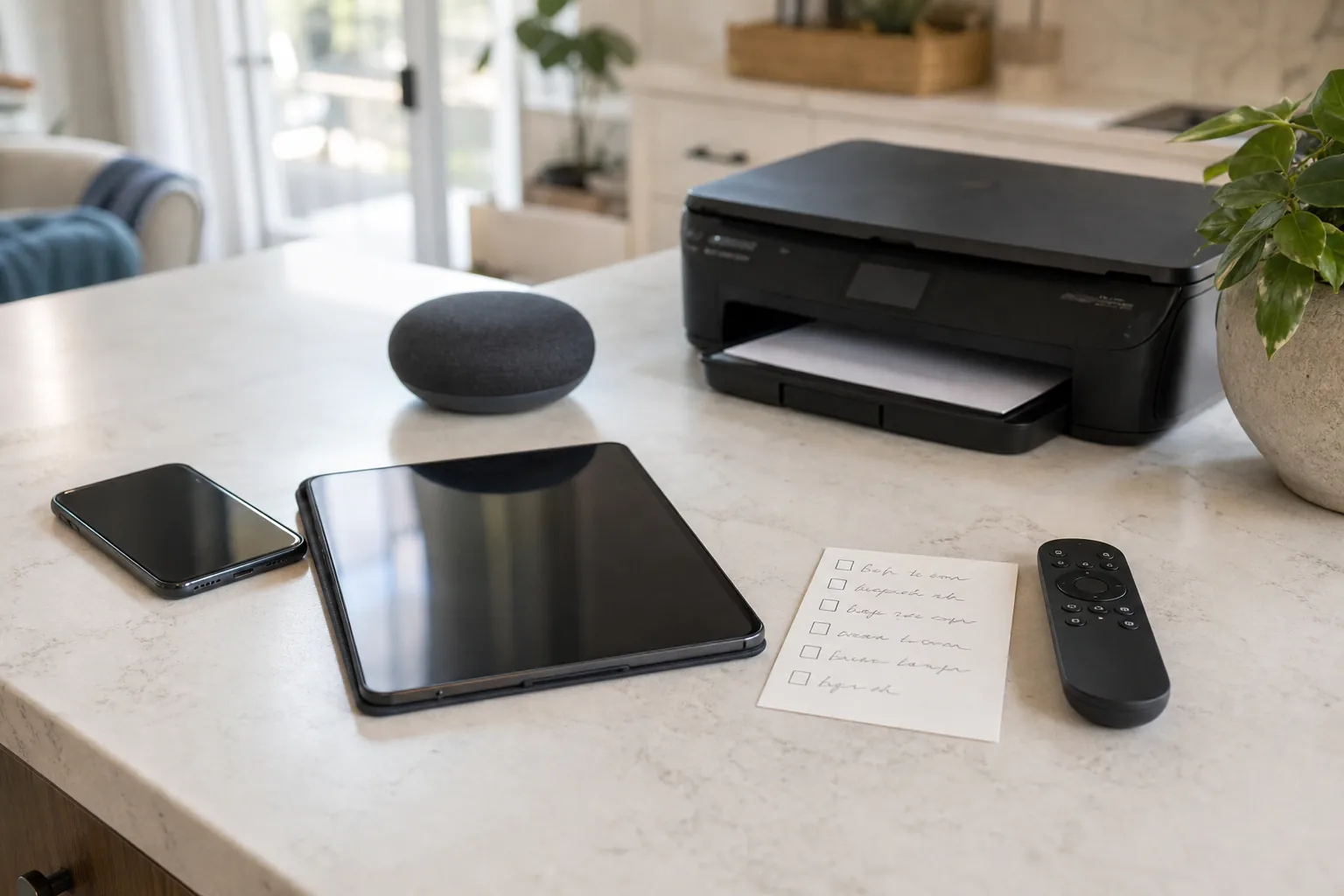
- List what is connected. Walk through the house: computers, phones, tablets, printers, TVs and streaming boxes, game consoles, doorbells and cameras, thermostats, smart plugs and lights, and anything else that uses Wi-Fi.
- Find the logins for device apps. Smart-home and camera apps usually require your account to reconnect a device. It is easier to locate those passwords before the internet is down.
- Consider reusing the same Wi-Fi name and password. Setting the new router to match the old name and password, exactly, including capitalization, allows many devices to reconnect on their own. If you prefer a new password for security, plan time to reconnect every device on your list.
Reconnecting the devices that do not come back
Start with the devices you rely on most. Computers, phones, and tablets only need the network chosen and the password entered. Printers usually have a wireless setup option on their control panel or in the manufacturer’s app; after the printer joins the new network, remove and re-add it on each computer if it still shows as offline. Smart TVs and streaming devices have a network section in their settings menu.
Smart-home devices are the most common holdouts. Many only connect to a 2.4 GHz network, so a router that combines both bands under one name can confuse them during setup. Check the device’s app for its reconnect or “change Wi-Fi” steps, and look at the new router’s settings for an option to separate the bands or use a compatibility mode. Older devices may not support the newest security setting, which is worth checking before you assume a device is broken.
The “two routers” problem
When a provider installs a modem that also acts as a router, and you keep your own router plugged into it, the home can end up with two separate networks. Some devices land on one, some on the other, and they cannot see each other. That is a common reason a phone cannot find the printer or a speaker group stops working. The fix depends on the equipment: one device is usually set to bridge mode, or one of the Wi-Fi networks is turned off. If you are not comfortable changing those settings, leave them alone and get help, because a wrong change can take the whole house offline.
When to get in-home help in Henderson
If the switch has turned into an evening of reconnecting devices, or some rooms now drop the signal, MMTS provides on-site tech support throughout Henderson, from Green Valley to Anthem. A WiFi and network setup visit covers router setup and configuration, security settings such as passwords and guest networks, and getting your devices connected and working together. Having your device list and any app logins ready makes the visit go faster. When you are ready, you can book an appointment.
Frequently asked questions
Do I have to reconnect every device after getting a new router?
Not always. If the new router uses exactly the same Wi-Fi name and password as the old one, many devices reconnect on their own. Devices that relied on a specific band, address, or older security setting may still need attention.
Why does my printer show offline after a router change?
The printer may still be looking for the old network, or it may have joined the new network at a different address than your computer expects. Reconnect it to Wi-Fi from its own panel or app, then remove and re-add it on the computer.
Should I keep my old router plugged in too?
Usually not as a second router. Running two routers can split the home into two networks. If you want to reuse the old equipment, it generally needs to be set up in a different mode, such as an access point.