

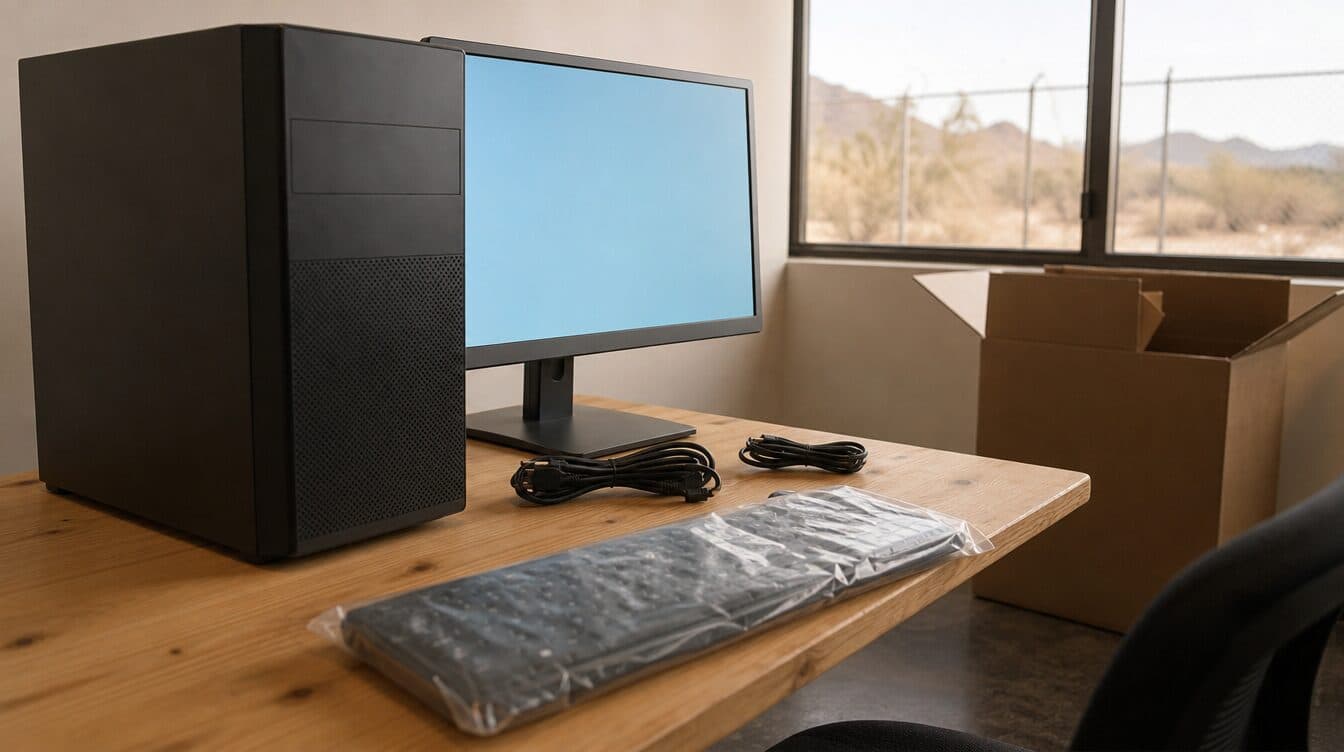
Opening a new computer box is the easy part. Getting the computer connected, updated, protected, and comfortable to use is where many Pahrump households can lose an afternoon. A new PC can be physically ready while still missing printer access, WiFi credentials, account sign-ins, file transfers, or the settings that make it feel familiar.
If you would rather have the setup handled at home, Matt provides new computer setup help throughout the Las Vegas area, including Pahrump. The goal is not to rush through a checklist; it is to leave you with a computer that connects to the equipment you actually use and that you can navigate confidently.
Quick Summary
- Keep your existing computer available until the new one is working the way you need it to.
- Gather WiFi details, key account logins, printers, and any storage devices before the setup visit.
- Confirm updates, connections, file access, and basic security settings before retiring the older computer.
Before you start
Before turning on a new computer, make a short list of what you use on the old one. That may include email, photos, browser bookmarks, documents, a printer, a password manager, cloud storage, or a home WiFi network. The list helps prevent the common problem of discovering a needed account or cable only after the old computer has been unplugged.
It is also smart to keep the existing computer available until you have checked that the new one can open the files and services you rely on. A new computer setup is more than moving folders. You may need to sign in to a service again, confirm that a printer is selected correctly, or make sure a shared folder is still available.
Get the new computer connected
Start with the basics: power, a stable display connection, keyboard and mouse, then your home network. If WiFi is weak in the room where the computer will live, that is worth addressing during setup rather than treating it as a computer problem later. Matt can also help with WiFi and network setup when the connection itself needs attention.
Once the computer is online, allow its operating system updates to finish before adding every program at once. Restarting when prompted and checking the network again afterward can save time. If you use a printer, connect and test it with a simple document instead of assuming that a device shown in a settings menu is ready to print.
Move what matters carefully
Files are important, but they are not the only thing to bring forward. Review where photos, documents, and downloads are stored before copying them. If you use an external drive or a cloud service, open a few folders from the new computer and confirm the expected files are there. A file transfer is not complete until it has been checked from the new device.
Keep passwords private and avoid writing them into a document just to make the transition easier. If you are uncertain about an account recovery screen, a software prompt, or a request to install something, pause before clicking through it. For a computer that is already behaving strangely, Matt also offers virus and malware removal rather than treating a security concern as an ordinary setup step.
Finish the setup with a real-world check
Before calling a new setup finished, do the ordinary tasks you will use the computer for: send yourself a test email, open a document, visit a familiar website, print a page if you print at home, and restart the computer once. This quick check can reveal an issue with a browser sign-in, display scaling, sound, printer, or network connection while everything is still in front of you.
It is also a good time to make the desktop easier to use. Adjust text size, pin the programs you use most, and put important folders where you will find them. That can be especially helpful for households looking for patient senior computer support without having to transport equipment to a store.
When onsite help makes sense
Onsite setup can be useful when several devices need to work together, when an older computer has files that need careful attention, or when you simply want someone to verify that the new computer is ready for everyday use. Matt provides mobile computer support in Pahrump and can help at your home or office.
For help with a new computer, a connection issue, or a device that is not cooperating after setup, request an appointment or call (702) 829-6914. Bringing a clear list of the devices and accounts you use can make the visit more efficient while keeping the focus on the setup you need.
Frequently Asked Questions
Should I get rid of my old computer as soon as the new one turns on?
No. Keep it available until you have confirmed that important files, email access, printers, and other everyday tools work from the new computer.
Can a new computer be set up without fixing weak WiFi?
It can, but an unreliable home connection may make a new computer feel unreliable too. Checking the computer where you plan to use it helps separate a network issue from a device issue.
What should I have ready for an onsite computer setup visit?
Have the new computer, any cables or accessories, WiFi details, printers or external drives you use, and a short list of the accounts or programs that matter most to you.