

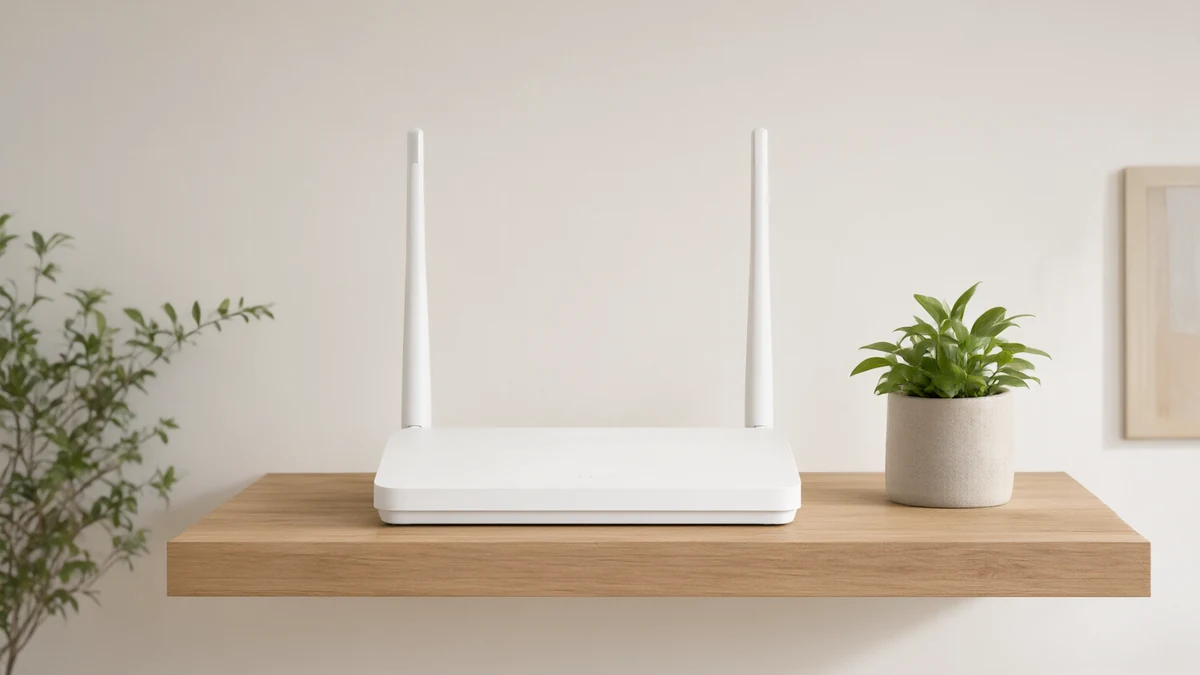
Home network security starts at your router and the devices connected to it. This checklist covers ten settings worth checking, in plain language, using guidance from the Federal Trade Commission (FTC) and CISA. If you would rather not do it alone, MMTS offers WiFi and network setup at your home or office.
Quick summary: Change your router's default passwords and network name, turn on WPA3 or WPA2 encryption, keep the router's software up to date, and switch off remote management, WPS and UPnP. Add a guest network, make sure the firewall is on, and log out of the router when you finish. None of this makes a network impossible to hack, but it removes the easy ways in.
Key takeaways
- A small network is not too small to matter. CISA says most attacks are not personal and can hit any network that connects to the internet.
- Your router has two passwords: one for the Wi-Fi network and one for its admin settings. Change both.
- WPA3 Personal is the best encryption the FTC lists, and WPA2 Personal also works. WPA and WEP are outdated.
- A guest network can separate visitors' devices from your main network when guest isolation is configured.
- Updates, antivirus and backups protect the devices on the network, not just the router.
Why does home network security matter?
Your home network connects computers, phones, smart TVs, cameras, voice assistants and connected appliances to each other and to the internet. The FTC points out that taking a few basic steps helps protect those devices from being hacked and your information from being stolen.
Many people assume their network is too small to be a target, or that devices are secure enough straight out of the box. CISA calls both of these common misconceptions. The default settings on routers and devices are built to be easy to set up, not to be secure, so a few minutes of changes is worth the effort.
What should you check on your router first?
Start with the router, because every device in the house goes through it. You will usually log in to it from a web browser or the manufacturer's app. If you are unsure how to reach the settings, the FTC suggests searching online for your router manufacturer's name plus "how to change admin password," or contacting the manufacturer.
1. Change the router's admin password and username
Routers often ship with a default administrator login. CISA notes that default credentials are not secure, because they may be available online or printed on the device itself. The FTC advises choosing something unique and avoiding anything that includes your name, address or router brand.
2. Set a strong Wi-Fi password
This is the password you type into your phone or laptop to join the network. The FTC is clear that this is a different password from the admin password. A unique, strong Wi-Fi password keeps strangers off your network. Do not reuse a password from your email or bank accounts.
3. Rename the network
The default network name, called the SSID, usually points to the router's make or model. CISA says an attacker can use that to identify your device and look for known weaknesses. Pick a name that is not tied to your family name or address.
4. Turn on WPA3 or WPA2 encryption
Encryption scrambles what travels over your Wi-Fi so others cannot easily read it. According to the FTC, update your router settings to WPA3 Personal or WPA2 Personal. WPA3 is the newer and better option, but both work.
If your router only offers WPA or WEP, the FTC calls those outdated and not secure. Try updating the router's software first and check the list again. If WPA2 or WPA3 still do not appear, the FTC suggests considering a new router.
5. Keep the router's software up to date
Router makers release updates to fix security problems. The FTC recommends checking the manufacturer's website for a newer version, registering the router so you hear about updates, and asking your internet provider whether it sends updates automatically if the router came from them.
6. Turn off features you do not need
The FTC recommends turning off three convenient features that can weaken security:
- Remote management, which lets you change router settings over the internet.
- Wi-Fi Protected Setup (WPS), the push-button way to connect a device. CISA adds that a design flaw in WPS PIN sign-in makes it easier to guess, and many routers do not lock out repeated attempts.
- Universal Plug and Play (UPnP), which lets devices find each other. CISA warns that malware inside your network can use it to get around your router's firewall.
The exact steps differ by router, so check the manual or your internet provider for your model.
7. Set up a guest network
Many routers let you create a guest Wi-Fi network with its own name and password. The FTC recommends this to keep your main password private and separate guests from your devices. Check your router's guest-isolation settings so guests cannot access your main network.
8. Turn on the firewall
A firewall adds a layer of protection that can help keep out viruses, malware and hackers. The FTC notes that most routers include one, so confirm it is turned on. CISA adds that some firewall features may be off by default and are worth checking.
9. Log out of the router when you finish
It is easy to forget. While you are logged in as administrator, passwords and security settings can be changed. The FTC recommends logging out as soon as you are done making changes.

Do the devices on your network need protecting too?
10. Protect the devices on your network
Hackers can get to your data through unsecured networks, and they can also get to your network through unsecured devices, the FTC says. CISA's archived checklist and the NSA's home-network guidance support these steps:
- Updating software regularly, since updates often include security fixes.
- Using built-in or reputable security software where the device supports it, and keeping it up to date.
- Removing software and services you no longer use.
- Using strong, unique passwords and not sharing one password across accounts.
- Backing up important files regularly, and encrypting the backup.
CISA also cautions that even good antivirus cannot catch every new threat, so layers matter more than any single tool. If a computer already shows pop-ups or acts strangely, see MMTS's page on virus removal and the guide to browser notification virus alerts. For backup options, read about data backup and recovery.
What about small offices and home offices?
The same steps apply to a small office, and the router is still the place to start. Changing default logins, using strong encryption, keeping the router updated and adding a guest network for visitors all apply to an office as well. MMTS lists small business networks among its network services, and its small business page explains what on-site support covers.
One limit worth knowing: the live small business page says MMTS does not take on server management, network cabling or managed-IT contracts, so this checklist is about a small office's everyday router and Wi-Fi settings, not a full managed network.
When should you get help instead?
Some of these checks may be manageable yourself, while others depend on your router, device and comfort with its settings. Help makes sense when you cannot log in to your router, when you are not sure what a setting does, or when a change drops a device off the network. Router menus differ from one brand to the next, and it is easy to change something you did not mean to.
Smart-home gear adds another reason to take care. Cameras, voice assistants and TVs all share your Wi-Fi, so it helps to have them set up properly the first time. MMTS's IoT setup and configuration page covers that, and the smart home setup in Pahrump post shows what a visit looks like.
For a new router, our guide to new router setup in Henderson walks through getting every device back online. If weak signal is the bigger problem, see WiFi extender vs mesh.
The MMTS WiFi page lists router setup, placement and security, plus secure passwords, guest networks and parental controls, among its network services. MMTS serves homes and offices in places like Henderson and Summerlin and across the Las Vegas Valley.
Frequently asked questions
Is WPA3 better than WPA2?
The FTC calls WPA3 the newer and best encryption available, and says WPA2 also works to scramble your information. If your router offers only WPA or WEP, the FTC says those are outdated and not secure.
Do I really need a guest network?
It is not required, but the FTC recommends it. A guest network means fewer people have your main password. Check that guest isolation blocks access to your main network rather than assuming a second network name does so.
What is the difference between the Wi-Fi password and the router admin password?
The Wi-Fi password lets devices join the network. The admin password opens the router's settings, including the ability to change the Wi-Fi password. The FTC says to reset both, because someone with admin access could undo every other step.
Should I turn off WPS and UPnP?
The FTC recommends turning off remote management, WPS and UPnP, because these features can make a network less secure even though they are convenient. CISA gives the same advice for WPS and UPnP.
Will these steps make my network completely safe?
No. CISA describes these steps as ways to reduce the attack surface and make an attack harder, not to remove all risk. Keep your devices updated and backed up as well.
Want a second pair of eyes on your network?
If you would like someone to check your router settings and devices, you can book an appointment or call (702) 829-6914.
Sources
- Federal Trade Commission, How To Secure Your Home Wi-Fi Network (December 2022; read November 23, 2026)
- CISA, Home Network Security (released February 1, 2021; CISA marks this page as archived content; read November 23, 2026)
- National Security Agency, Best Practices for Securing Your Home Network (February 2023, version 1.0; read November 23, 2026)
- MMTS, WiFi and network setup and small business pages (read November 23, 2026)