

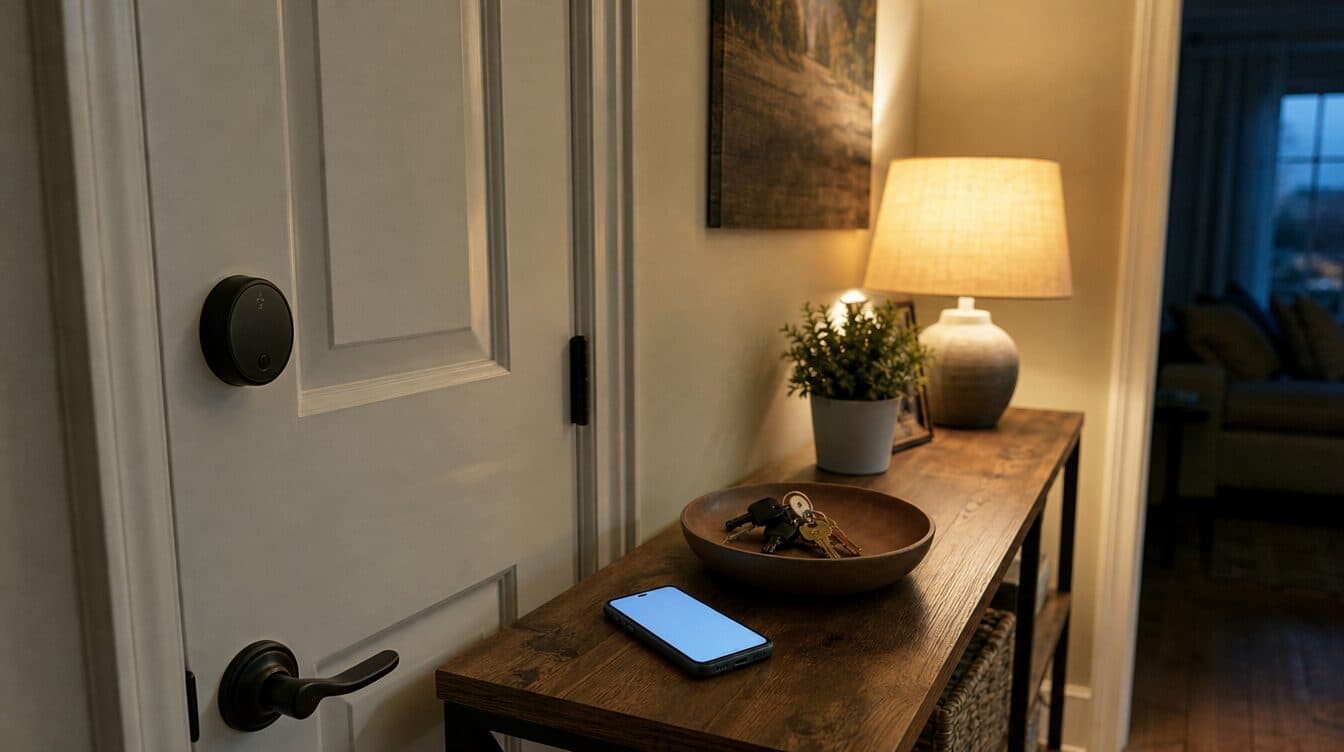
A smart doorbell or lock can feel simple right up until it will not join the home network, the phone app cannot find it, or the connection drops after setup. In a North Las Vegas home, the most useful next step is usually not to keep resetting everything. Start by narrowing down whether the issue is power, the Wi-Fi connection, the mobile app, or the device itself.
Quick Summary
- Confirm the device has power and is close enough to the router for its first setup.
- Use the same network your phone is currently connected to during setup.
- Check the app’s instructions before removing or factory-resetting the device.
- If several devices are dropping together, the home Wi-Fi setup may need attention first.
In This Guide
- Start with power and placement
- Make the first Wi-Fi connection simple
- Separate app problems from network problems
- Know when several devices point to one network issue
- Know when onsite help makes sense
Start With Power and Placement
Before changing any settings, make sure the doorbell, lock, hub, or camera is powered as its manufacturer expects. A low battery, loose connection, or incomplete charge can look like a network problem. For a first-time setup, it also helps to begin near the router rather than at the far edge of the home. That gives the device its best chance to complete its initial connection before it has to work from its final location.
Do not assume that a phone having internet access proves every smart device will have the same signal quality. A phone can move around the house and switch between connections more easily than a fixed device mounted near a door or garage. If the device connects near the router but not in its intended spot, the next question is coverage in that area—not whether to repeat every setup screen.
Make the First Wi-Fi Connection Simple
During setup, keep your phone on the home network you intend the device to use. Follow the manufacturer’s app prompts in order, including any temporary connection the app asks you to make. If the setup fails, write down the exact message before starting over. “Device not found,” “wrong password,” and “unable to join network” can point to different next steps.
It is also worth checking whether the network name and password being entered are current. Avoid changing router names, passwords, or security settings in the middle of a setup attempt unless you know why that change is needed. Those changes can disconnect other household devices and make the original problem harder to isolate.
Separate App Problems From Network Problems
A device can be physically online while its companion app still needs attention. Check that the phone has the current version of the manufacturer’s app and that you are signed into the intended account. If a household has more than one person using the device, confirm that everyone is using the correct shared-access method rather than creating separate, conflicting setups.
For a new smart-home device, the IoT setup and configuration service is the most relevant service page. It covers connecting and managing devices that need to work together in the home. For the network side, Matt also provides Wi-Fi and network setup for coverage, router configuration, and device connectivity.
When Several Devices Are Affected
If a single new doorbell will not connect, start with that device’s power, app, and setup sequence. If a doorbell, smart speaker, thermostat, and laptop are all dropping at different times, the pattern may be broader. Router placement, coverage, guest-network settings, or a network change can affect several devices at once.
That distinction matters because repeatedly resetting individual devices can erase useful clues without improving the connection. A clear review of which devices fail, where they are located, and whether the problem is constant or intermittent gives a technician a more useful starting point.
When Onsite Help Makes Sense
Onsite support can be useful when the device has to work from a specific place in the house, several devices need to be connected, or the owner would rather have one person walk through the setup clearly. Matt provides mobile computer and smart-home support for Las Vegas-area homes and businesses. You can review the available services on Matt’s services page or request an appointment.
Frequently Asked Questions
Should I reset my smart doorbell or lock as soon as it will not connect?
Not always. First confirm power, the correct app account, and the home network details. A reset may be appropriate when the manufacturer’s instructions call for it, but it can remove setup information that would otherwise help identify the issue.
Why does a smart device work near the router but not at its final location?
The device may be getting a stronger signal near the router than where it is installed. That points to a coverage or placement question rather than a problem with the device alone.
Can one network issue affect several smart-home devices?
Yes. When several connected devices lose access together, review the network before spending time resetting each device individually.
Need help getting connected devices working together?
Book Matt’s mobile tech support for help at your home or office.