
The safest way to transfer data to a new computer is to copy your files first, check that they opened, and only then retire the old machine. For a Windows PC you have three practical routes: Microsoft's built-in backup, an external drive, or a technician who does the move for you, such as MMTS's on-site new computer setup in the Las Vegas Valley.
Quick summary: Windows Backup sends your main folders and some settings to OneDrive, an external drive copies everything you choose by hand, and a hands-on move suits people who would rather not do either. This post compares the three, then lists items that can get left behind: browser data, email, printers, program licenses and photos stored in odd places.
Key takeaways
- Copy first, then check. Open a few files on the new computer before you erase or recycle the old one.
- Windows Backup is free to start, but the free OneDrive space is small, so a large photo library may not fit.
- An external drive is simple and works without internet, as long as you copy every folder that holds your files.
- Programs usually need to be installed again, so gather license keys and sign-in details first.
- Check browser bookmarks, saved passwords and email during the move.
What actually moves to a new computer?
Your files move easily: documents, photos, music and videos. Programs, saved passwords and some settings need extra attention, because a copy of your folders does not install anything on the new machine.
Think of the move in three parts: your files, your settings, and your programs and accounts. The methods below handle the first part well. The second part depends on the method, and the third part is mostly a checklist you work through by hand.
How do you transfer data to a new computer with Windows Backup?
Windows Backup is the tool Microsoft points to for moving to a new PC. It is built into Windows and uses a Microsoft account to store your information.
According to Microsoft Support, the steps are:
- Sign in to Windows with a Microsoft account (Settings, then Accounts).
- Open Windows Backup from the Start menu.
- Under Folders, turn on the folders you want: Desktop, Documents, Pictures, Videos and Music. These sync to OneDrive.
- Choose which settings to remember, such as installed apps, accessibility, Wi-Fi and passwords, personalization and language preferences, then select Back up.
- When setting up the new PC, sign in with the same Microsoft account and choose the backup if prompted to restore settings. Sign in to OneDrive with that account to access the synced files.
Two limits are worth knowing. First, a free Microsoft account includes 5 GB of OneDrive storage, so a big photo or video collection may need more space, which Microsoft sells separately. Second, Microsoft says Windows Backup is aimed at personal Microsoft accounts, and work or school accounts will not work with it.
You may also find older guides describing a PC-to-PC transfer where two computers pair over your home network. Microsoft's own page for that feature now says it is no longer available and sends readers to Windows Backup and Restore instead, so skip those instructions.
Is an external drive a better way to move files?
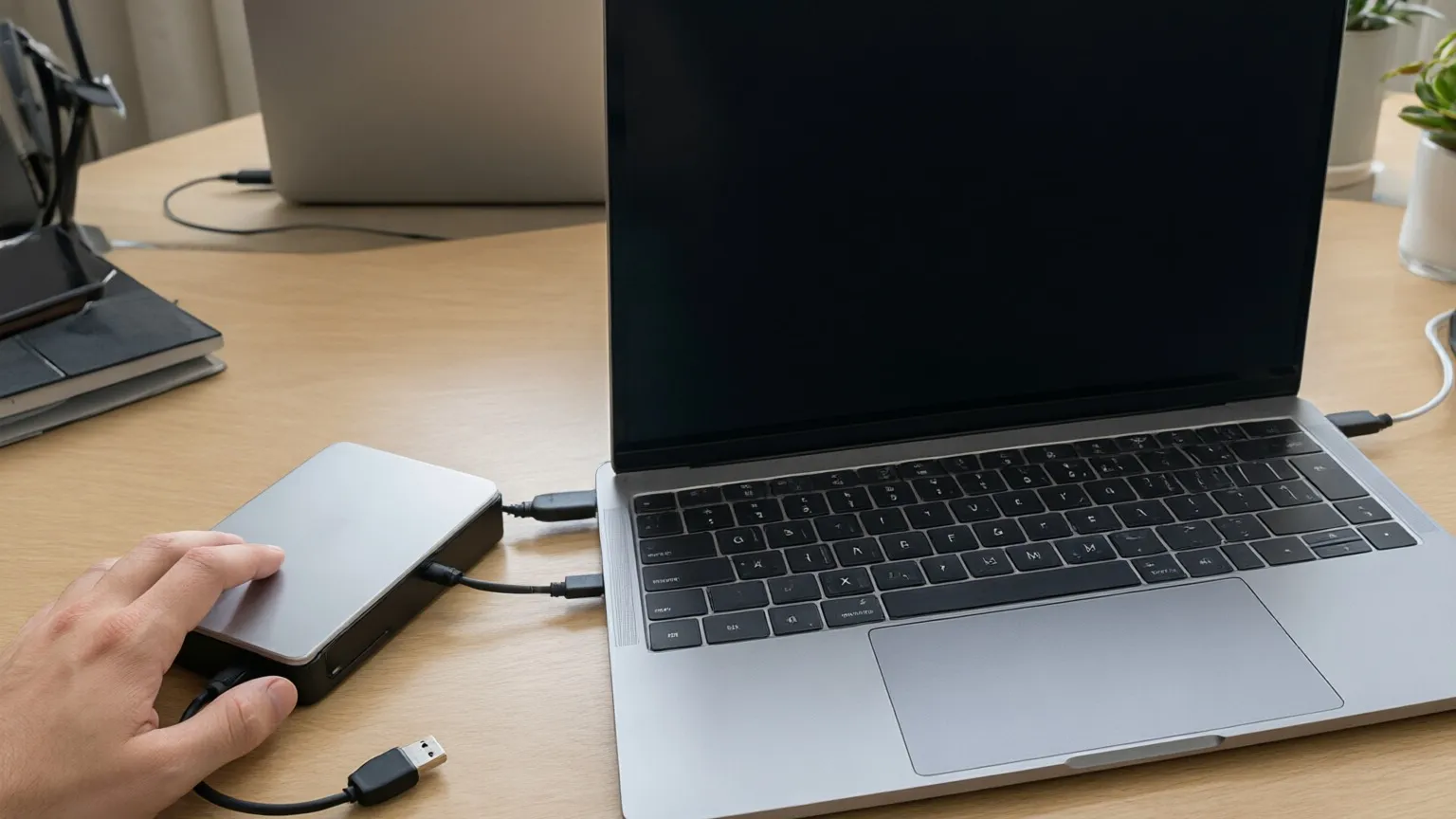
Often, yes, especially for large collections or a home with slow internet. An external hard drive or USB drive copies everything you select without relying on cloud space.
Microsoft's steps for this method are short:
- Plug the drive into the old PC and open File Explorer.
- Select the files and folders to copy and send them to the drive.
- Check Documents, Desktop, Downloads, Favorites, Music, Pictures and Videos, because files are often spread across several of them.
- Browse the drive to confirm the files are there, then use Eject before you unplug it.
- Plug the drive into the new PC, open it in File Explorer, and copy the folders to where you want them.
Microsoft notes that copying can take time depending on how many files you move and how big they are. Copying your files this way does not install your programs or automatically restore all your settings, so check those on the new computer.
What do people forget when they transfer data to a new computer?
Some items may be outside your Documents folder. Run through this list before you consider the move finished:
- Browser data. Bookmarks, saved passwords and extensions live inside the browser. Microsoft suggests signing in to Microsoft Edge and turning on sync; other browsers have their own sign-in and sync options.
- Email. Webmail such as Gmail or Yahoo only needs you to sign in. Mail stored on the computer by a desktop program needs to be exported or set up again.
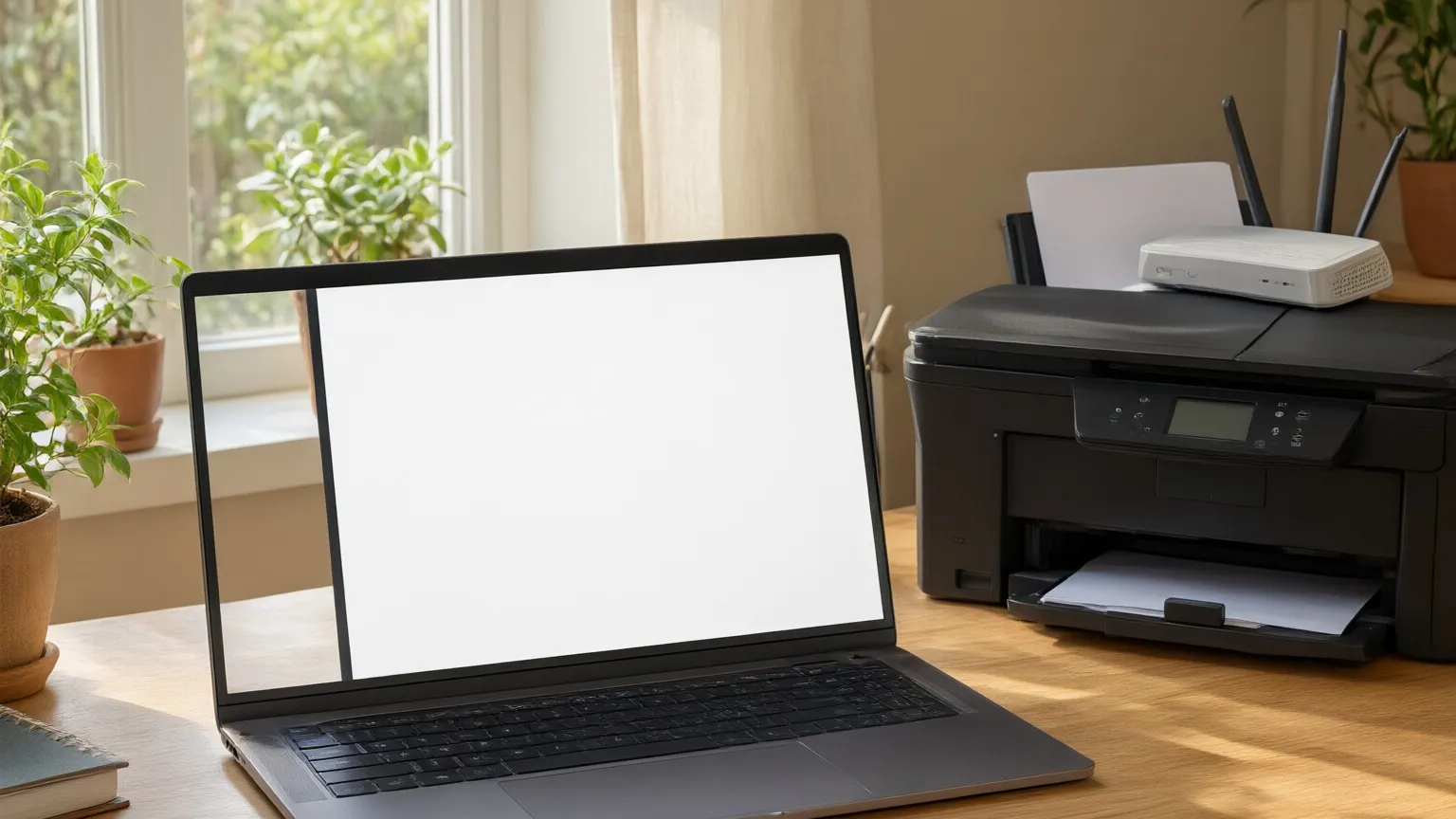
- Printers and scanners. The new computer has to be connected to each one. Note the printer's model name before you start.
- Programs and licenses. Find the sign-in or license key for tax software, Office programs and any paid tools while the old computer still works.
- Files in odd places. Look at Downloads, the Desktop, other drives and any folder you made yourself.
How long should you keep the old computer?
Keep it until you are sure nothing is missing. A sensible check is to open a handful of files from each major folder on the new computer, send a test email, and print one page.
When does it make sense to have someone do the move?
A hands-on move makes sense when the data is large, the old computer is slow or unreliable, or you simply do not want to spend an afternoon on it. It also helps when the computer belongs to a parent or a small office where nobody has time to troubleshoot.
MMTS comes to your home or office instead of asking you to bring the computer in. According to the live new computer setup service page, Matt transfers your files, installs your programs, sets up email, connects your printer, scanner and WiFi, removes bloatware, configures security and walks you through what is different. The page says how long it takes depends on how much data needs to move, and it asks you to keep the old computer and its password handy. The same setup service covers PCs and Macs.
If you live in Summerlin or Henderson, or elsewhere in the Las Vegas Valley, you can read how a full visit works in the related guide, You Got a New Computer – Now What?. If the bigger worry is losing files, the guide to data backup and recovery explains how to protect what you have. Please confirm rates directly with MMTS before you book.
Frequently asked questions
How long does it take to transfer data to a new computer?
It depends on how much you are moving and which method you use. Microsoft notes that copying files to a new PC can take time depending on the number and size of the files. A small Documents folder moves quickly, while years of photos and videos take much longer.
Can I move my programs to the new computer?
Not by copying folders. Windows Backup can remember many of your installed apps as part of its settings, but you should check each program on the new PC and plan to sign in or enter a license key again. Gather those details before you give up the old computer.
Is the free 5 GB of OneDrive enough?
For documents, often yes. For a large photo or video library, often no. Microsoft says more OneDrive storage is available to buy, and an external drive is the alternative if you would rather not pay for cloud space.
Can I move from a Windows PC to a Mac?
This guide covers Windows computers. A move between a PC and a Mac works differently, and the live MMTS service page says Matt sets up both PCs and Macs. If you are switching, ask before you book so the plan fits your files.
Ready for a hands-on move?
If you would rather have your files, email and printer working without the afternoon of troubleshooting, you can book an appointment or call (702) 829-6914.
Sources
- Microsoft Support, Back up and restore with Windows Backup
- Microsoft Support, Transfer your files and settings to a new Windows PC
- Microsoft Support, Move your files to a new Windows PC using an external storage device
- MMTS, New computer setup (service page, read November 9, 2026)