

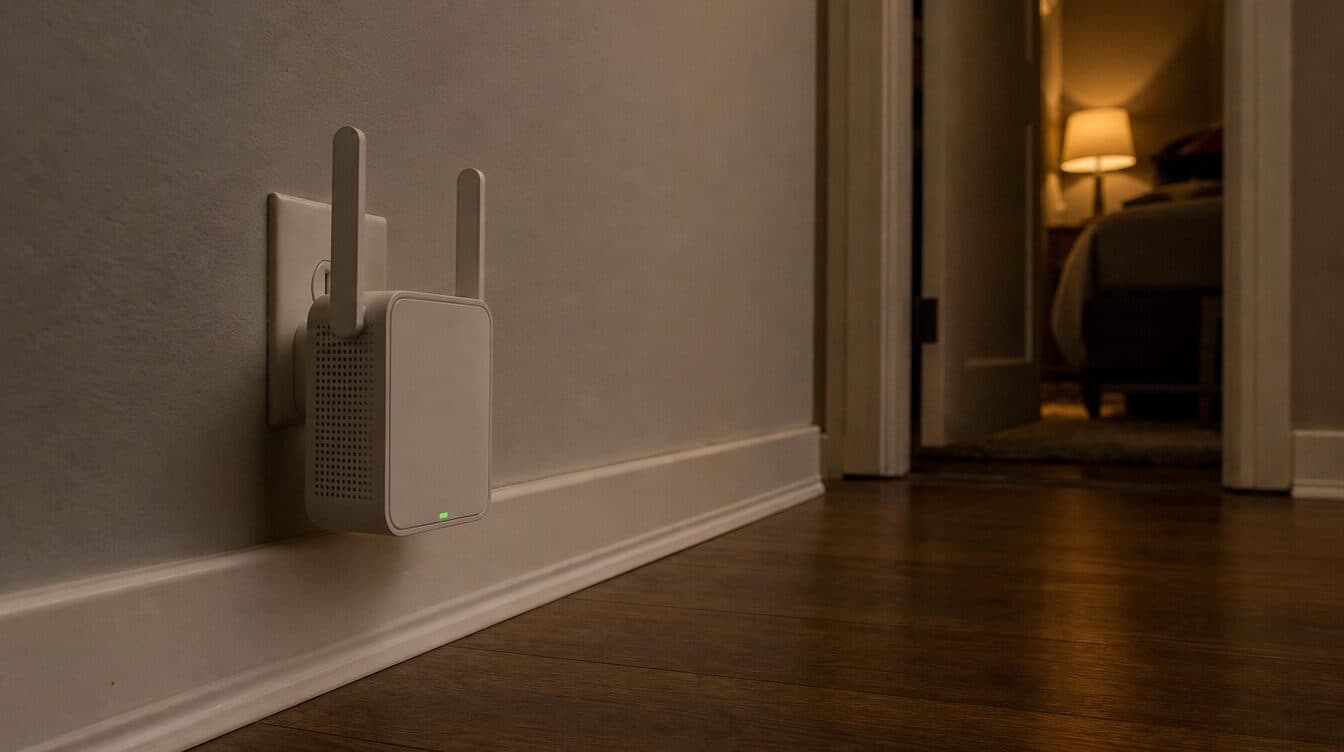
You pay for decent internet. You did everything right — called the provider, scheduled the tech, sat through the four-hour window. The router blinks green. But somehow, the WiFi in your Enterprise home is still a mess. The bedroom barely loads YouTube. The home office drops video calls every twenty minutes. And the backyard where your kids do homework in the evening? Forget it.
If that sounds familiar, you’re not alone. WiFi problems are one of the top complaints among homeowners throughout Enterprise — and the solution almost never comes from the internet provider.
Why Enterprise Homes Are Especially Hard on WiFi Signals
Enterprise, NV sits just southwest of the Las Vegas Strip, and it’s one of the fastest-growing communities in Clark County. Most homes here were built in the 2000s or later — which means thick stucco walls, metal-frame construction, and large floor plans designed for Southern Nevada’s open, sprawling style. All of those features look great at a showing. They’re terrible for wireless signals.
Here’s what happens in a typical Enterprise home:
- Stucco and metal mesh (lath) walls act like a Faraday cage — they absorb and scatter WiFi signals rather than letting them pass through cleanly.
- Long ranch-style layouts put bedrooms 60–80 feet from the router, well beyond the effective range of most ISP-provided equipment.
- Two-story layouts create vertical dead zones, especially when the router sits on the ground floor near the garage or utility closet.
- Smart home devices — Ring cameras, Nest thermostats, smart TVs, and streaming sticks — all compete for bandwidth simultaneously, saturating the 2.4 GHz band.
- The desert heat causes routers to overheat when tucked into enclosed entertainment centers or closets, degrading performance throughout the afternoon and evening.
- Neighboring networks on the same WiFi channels cause interference, particularly in Enterprise’s denser neighborhoods near South Rainbow Boulevard and West Windmill Lane.
None of this means you’re stuck with bad WiFi. It means you need a setup that was actually designed for your home — not a generic router dropped on top of the cable box and forgotten when the ISP tech left.
The Real Cost of Living With Bad WiFi in Enterprise
Bad WiFi is more than an annoyance. For Enterprise families, it quietly chips away at work, school, and quality of life every single day.
Think about Maria, a remote paralegal in Enterprise who loses her connection during a client call with attorneys in Los Angeles — right in the middle of sharing her screen. Or Robert and his teenage kids, who fight over who gets to use the smart TV in the living room because the whole network bogs down after 6 PM. Or Karen, who works from her home office in the back of the house and hasn’t had a stable Zoom connection in months — she started driving to a coffee shop on West Warm Springs Road just to finish her workday reliably.
These aren’t edge cases. This is daily life for a significant number of Enterprise households. And most of them don’t realize that a proper WiFi setup — not an upgrade from the provider, not a new modem — would solve almost all of it in a single afternoon.
The longer you wait, the more those problems compound. You miss deadlines. You pay for streaming services that rarely stream. You argue with family members about internet usage during peak hours. You schedule “important calls” for early morning before everyone else wakes up and rearrange your entire workflow around a fixable problem.
And here’s the frustrating part: your internet plan is probably fine. Most Enterprise households on Cox or CenturyLink (now Quantum Fiber) have plenty of bandwidth on paper. The bottleneck isn’t the pipe coming into the house — it’s what happens to the signal after it leaves the router.
What a Professional WiFi Setup Actually Looks Like
This is where Matt’s Mobile Tech Support comes in. Matt has been providing in-home tech support throughout Clark County for over 10 years, and WiFi setup and optimization is one of the most common calls he handles in Enterprise, Las Vegas, Henderson, Summerlin, and surrounding areas.
Here’s what a professional WiFi setup in an Enterprise home typically involves:
1. A Full Home Walk-Through
Before touching a single cable, Matt walks the home to assess signal dead zones, identify interference sources, and understand how the family actually uses the internet. Where do people work? Where do kids stream? Where does video calling happen most? That walk-through shapes every decision that follows.
2. Router Placement Optimization
The ISP tech who installed your service placed the router where it was convenient — not where it performs best. Often that means near the front of the house or tucked in a closet by the utility box. Matt relocates routers to a central, elevated position that maximizes coverage and minimizes signal degradation through walls and floors.
3. Mesh Network Setup (for Larger Homes)
For Enterprise homes over 1,800 square feet — or any home with a backyard workspace, garage office, or upstairs bedrooms — a single router is almost never sufficient. Matt installs and configures mesh WiFi systems (Eero, Google Nest WiFi Pro, or Netgear Orbi) that blanket the entire home with a seamless, fast network. No more dead spots, no more “which network am I connected to right now,” no more signal handoff lag when you walk from room to room.
4. Device Prioritization and Band Optimization
Modern routers broadcast on both the 2.4 GHz and 5 GHz bands. Most people don’t know the difference — or that their primary work laptop is connecting to the slower band by default. Matt ensures that laptops and video-call devices get priority access to the faster 5 GHz band, while smart home devices stay on 2.4 GHz where they belong. The result: your computer stops competing with the Ring doorbell and the Nest thermostat for bandwidth at 9 AM.
5. Security and Guest Network Configuration
A proper setup includes a secure main network with a strong WPA3 password, plus a completely separate guest network for IoT devices and visitors. This protects your personal computers and financial data from vulnerabilities that can be introduced by smart home devices. Matt also helps configure IoT and smart home setups so they integrate cleanly without dragging down the rest of your network performance.
6. Testing Every Room
Before calling the job done, Matt runs speed tests in every major area of the home — living room, home office, bedrooms, kitchen, garage, and backyard patio if applicable. You’ll see the before-and-after numbers, and you’ll know exactly what changed and why. No guesswork, no vague promises about “improvement.”
Rate: $125/hr for residential, with most WiFi setup calls completed in one to two hours.
What About Your Other Devices?
While Matt’s in your home for a WiFi setup, he’ll often spot other tech issues you’ve been living with. A slow laptop that needs cleaning and a software tune-up. A printer that won’t stay connected to the network. A new smart TV that nobody could figure out how to link to the streaming accounts. There’s no extra trip charge for any of that — Matt handles whatever comes up during the visit.
That’s the real advantage of mobile computer repair and in-home tech support over carrying your devices to a shop. The technician sees your full environment — the router location, the wall construction, the device count, the room layout — and can solve the full problem, not just the one item you happened to carry in.
If you’re in Enterprise and you’ve been dealing with any of the following, a professional WiFi setup is almost certainly the answer:
- WiFi dead zones in bedrooms, home offices, or the backyard
- Slow or dropping internet specifically during video calls
- Devices that disconnect and reconnect constantly throughout the day
- A new router from Amazon that still didn’t fix anything
- Smart home devices that cause the whole network to lag
- Evening slowdowns when everyone comes home and gets online
Matt can typically be at your door same day or next day. Just call (702) 829-6914 or schedule your appointment online.
Share the Tech Relief — Referral Program
If Matt fixed your WiFi and your neighbor is still complaining about buffering, do them a favor — and save you both some money while you’re at it.
The “Share the Tech Relief” referral program gives you $25 off your next service call when you refer a friend, neighbor, or family member to Matt’s Mobile Tech Support. Your referral also gets $25 off their first visit. All they need to do is mention your name when they book.
There’s no limit to how many referrals you can make, and no complicated sign-up process. Enterprise is a close-knit community, and a lot of Matt’s best long-term clients come through word of mouth from neighbors who’ve seen what a proper tech setup looks like. This program is Matt’s way of saying thank you for spreading that word.
Ready to refer? Have your friend call (702) 829-6914 or book at mmts-it.com/contact and mention your name. That’s all it takes — both discounts apply automatically.
Frequently Asked Questions About WiFi Setup in Enterprise
Does Matt work on both PCs and Macs?
Yes — Matt supports both Windows PCs and Apple Macs, as well as iPhones, Android phones, tablets, smart TVs, printers, and smart home devices. Whether you’re running Windows 11 or macOS Sequoia, Matt can connect, configure, and optimize your devices on the same network without brand restrictions.
How quickly can Matt come out to Enterprise?
Same-day or next-day appointments are typically available for Enterprise residents. Enterprise sits in the southwestern Las Vegas Valley, making it easy for Matt to schedule efficiently without long drive times across the metro. For the best chance at a same-day slot, call (702) 829-6914 as early in the day as possible.
How does the $25 referral discount work?
When you refer a friend or neighbor to Matt’s Mobile Tech Support, both of you receive $25 off your next (or first) service visit. The person you refer simply mentions your name when they call or book online — no coupon codes, no apps, no forms to fill out. The discount is applied automatically. It’s the easiest way to help a neighbor get reliable tech help and save money for both of you at the same time.
Get Your Enterprise Home Connected the Right Way
You don’t have to keep working around dead zones or rebooting your router every other day hoping it sticks. A professional WiFi setup in your Enterprise home can eliminate the majority of signal problems in a single visit — and the difference in day-to-day quality of life is immediate and obvious.
Matt’s Mobile Tech Support has helped hundreds of Clark County homeowners get reliable, fast, whole-home WiFi coverage — with no shop visit required, no waiting in line, and no confusing technical explanations you have to decode afterward. He comes to you, solves the actual problem, and leaves you with a network that performs the way your modern home demands.
Ready to get started? Call (702) 829-6914 or book your appointment online. And if you know a neighbor in Enterprise still fighting with their WiFi every day, remember — refer them and you both save $25.