

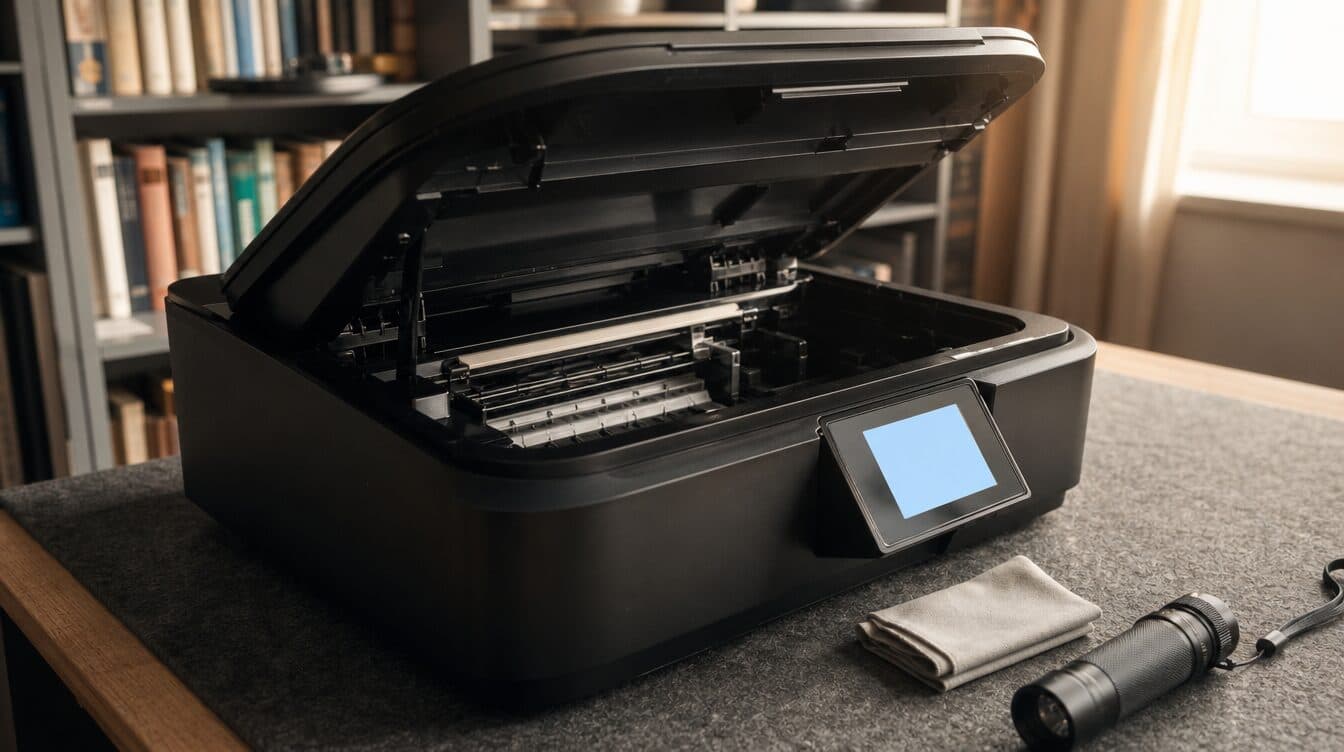
A printer that worked fine last month can suddenly refuse to print, show “offline” for no clear reason, or turn out streaked, faded pages that a new cartridge does not fix. Printer repair in Henderson usually is not about knowing which button to press — it is about figuring out why the printer stopped cooperating in the first place, since restarting it rarely touches the actual cause. Matt provides on-site printer repair throughout Henderson, working through the printer, the connection, and the devices around it until printing is reliable again, not just working for one lucky test page.
This is different from setting up a brand-new printer for the first time. Most of the calls we get in Henderson involve a printer that used to work and now does not — which means the fix is usually about diagnosing what changed, not starting from scratch.
Quick Summary
- An “offline” printer is almost always a connection problem, not a broken printer — the device, the router, or the print queue lost track of each other.
- Streaks, faded pages, and smudging usually point to print heads, cartridge seating, or paper quality, not a cartridge that automatically needs replacing.
- Frequent paper jams often trace back to paper type, tray alignment, or worn rollers rather than a single stuck sheet.
- If a printer keeps failing after the usual fixes, on-site printer repair in Henderson can find the actual cause instead of repeating the same troubleshooting loop.
What This Guide Covers
- Why restarting the printer rarely fixes the real problem
- Offline errors and why the printer keeps disconnecting
- Paper jams, streaks, and fading: what they are actually telling you
- Printing from more than one computer, phone, or laptop
- When it is time to call for printer repair in Henderson
- Frequently asked questions
Why restarting the printer rarely fixes the real problem
Turning a printer off and on again clears its short-term memory, which is why it sometimes appears to fix things. It does not touch a weak Wi-Fi signal, an outdated driver on the computer, a print queue stuck on an old job, or rollers that have picked up dust over a few years of use. Those causes stay in place, which is why the same printer problem tends to come back within a day or two of a reset.
A more useful first step is figuring out where the failure actually is: the printer itself, the network it is trying to use, or the computer or phone sending the print job. Each of those needs a different fix, and treating all three the same way — unplug, wait, plug back in — is why so many Henderson households end up resetting the same printer every week without the problem actually going away.
Offline errors and why the printer keeps disconnecting
An “offline” message almost always means the computer or phone cannot currently reach the printer — not that the printer is broken. On a wireless printer, this often comes down to the printer sitting at the edge of the Wi-Fi signal, a router that reassigned the printer a new network address it is not expecting, or a print queue that is still trying to talk to an old, cached connection. Moving the printer, restarting the router, or clearing a stuck print queue each solve a different version of this same complaint.
It is also common for one device to print fine while another shows the printer as offline. That usually means the working device has the current connection details and the other one does not, which points to a setup or driver issue on that specific computer or phone rather than the printer itself. Diagnosing which device is actually the problem — instead of assuming the printer needs replacing — is most of what on-site printer repair in Henderson actually involves.
Paper jams, streaks, and fading: what they are actually telling you
Frequent paper jams are rarely random. Rollers that have picked up dust or ink residue lose their grip over time, paper stored somewhere humid can absorb moisture and stick together, and a tray loaded past its limit or with mismatched paper sizes will misfeed no matter how careful you are loading it. A printer that jams on the same page count every time is usually pointing to a specific mechanical cause, not bad luck.
Streaked or faded pages point to a different set of causes: a print head that needs cleaning, a cartridge that is seated slightly wrong even though it clicked into place, or a print quality setting that got changed and never switched back. Smudging on inkjet printers often comes down to paper that is not rated for the ink being used. None of these are solved by simply buying a new cartridge, which is why that fix so often does not stick.
Printing from more than one computer, phone, or laptop
A printer that works from one laptop but not from a phone or a second computer is one of the more common complaints we see in Henderson homes and small offices. Each device needs its own working connection to the printer, and it is easy for one device to fall out of sync — especially after a router reset, a software update, or the printer being briefly unplugged and moved.
For households and offices juggling several devices, the practical fix is usually reconnecting the outdated device to the printer’s current network details rather than troubleshooting the printer itself, which is often working correctly for everyone else already. If the underlying Wi-Fi signal is weak in the room where the printer sits, that instability will keep resurfacing across every device no matter how many times it gets reconnected — our guide to WiFi and network setup covers what to check when the signal itself is the root cause.
When it is time to call for printer repair in Henderson
A single jam or a one-time offline message is usually a five-minute fix. It is worth calling in help when the same problem keeps recurring after you have already tried the obvious steps, when a printer that used to work across several devices has quietly stopped working on most of them, or when print quality has been degrading gradually and no amount of cartridge swapping brings it back. Those patterns usually mean something underneath the surface — a driver, a network setting, or a mechanical part — needs an actual look rather than another reset.
Matt provides onsite printer repair throughout Henderson and the surrounding Las Vegas Valley, working through the printer, the network, and the devices connected to it until printing is reliable again. If you are also dealing with a new printer that needs setup from the start rather than an existing one that stopped cooperating, our guide to tech support in Henderson covers the broader range of on-site help available in the area.
Frequently Asked Questions
Why does my printer say offline when it is clearly turned on?
The printer being powered on is not the same as the computer or phone having an active connection to it. This usually means the device sending the print job has an outdated network address for the printer, the printer has dropped off Wi-Fi, or the print queue is stuck on a previous job. Each of those needs a different fix.
Why does my printer jam on the same page almost every time?
A jam that repeats at a consistent point is usually mechanical — rollers that have lost their grip, a tray loaded past its limit, or paper that does not match what the printer is set to expect. It is rarely a coincidence when it happens repeatedly in the same spot.
Can you fix a printer that already has a new cartridge and still prints streaks?
Yes. Streaking after a cartridge swap usually means the cause was never the cartridge — it is more often the print head, how the new cartridge seated, or a print setting that changed. Those get diagnosed and corrected on-site.
Do you repair printers or only set up new ones?
Both. Matt handles new printer setup and the repair of printers that already stopped working correctly, including offline errors, paper jams, print quality problems, and connecting multiple devices to one printer.
Dealing with a printer that will not cooperate in Henderson?
Matt can diagnose what is actually wrong — connection, hardware, or software — and get it printing reliably again from every device you use. Book an appointment to get started.