

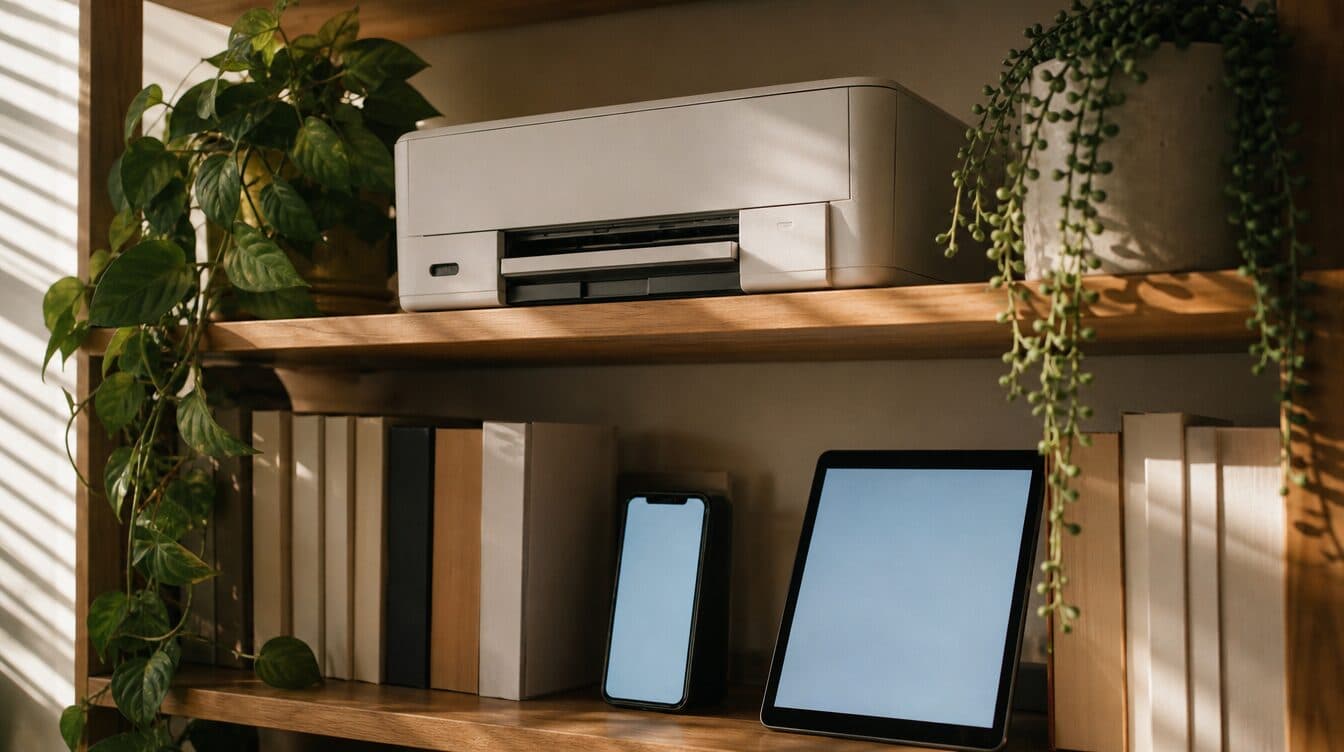
A printer can look fully set up and still fail at the one moment you need it. It may be on, loaded with paper, and sitting next to a computer—yet the laptop cannot find it, a phone keeps showing it as offline, or jobs sit in a queue without printing. For printer setup in Summerlin, the goal is not just to get one test page out. It is to make sure the printer works from the devices you actually use at home or in the office.
Matt provides on-site support throughout Summerlin for printer setup, connection issues, and the everyday problems that make printing unreliable. Whether you have just opened a new printer or an existing one has stopped cooperating, a careful setup can save time and reduce repeat troubleshooting later.
Quick Summary
- A complete setup includes the printer, your Wi-Fi connection, the computer, and any phones or tablets that need to print.
- Before changing settings, check power, paper, ink or toner, the display, and the network you intend to use.
- After setup, test more than one device so a printer that works from one laptop does not remain unavailable everywhere else.
- If the connection, drivers, or print queue keep getting in the way, Matt’s printer repair and setup support can help at your location.
What This Guide Covers
- Start with the right basics
- Connect the printer to the right Wi-Fi network
- Add the devices you rely on
- Test before you call the job finished
- When on-site help makes sense
- Frequently asked questions
Start with the right basics
It is tempting to begin by clicking “Add printer” on a computer. First, give the printer a clean starting point. Place it where it can be powered reliably, load the appropriate paper, and confirm that any ink or toner cartridges are installed correctly. If the printer has a display, look for an obvious setup message, warning, or network prompt rather than assuming it is ready because it turns on.
Next, decide which connection fits your setup. Some homes and small offices want a printer connected to Wi-Fi so multiple devices can use it. Others may begin with a direct connection to one computer. The important part is to choose the connection method before adding devices, so you do not end up with a printer that is installed in two conflicting ways.
For a new machine, the practical setup often includes connecting it to the network, installing the needed software or drivers on the computer, and confirming that the people who need it can use it. That is especially helpful when a new computer is involved; new computer setup support can include connecting an existing printer along with the rest of your devices.
Connect the printer to the right Wi-Fi network
Most frustrating printer problems begin with a mismatch: the printer is connected to one network while the laptop, phone, or tablet is using another. Before entering a password or selecting a network from the printer’s display, verify the network name used by the device that will print most often. This simple check can prevent a lot of “printer offline” confusion later.
Once the printer joins the intended network, give it a moment to complete the connection. Then add it from the computer you plan to use first. If the computer offers several versions of the same printer, avoid guessing. An old, unavailable listing can look almost identical to the new network connection. Choose the active device, send a small test job, and check whether the page actually comes out.
Reliable printing also depends on the health of the home or office network. If the printer repeatedly drops off Wi-Fi or is far from the router, it may help to address the network connection rather than reinstalling the printer over and over. A printer setup appointment can include reviewing the connection path and confirming that the printer and your primary devices can communicate consistently.
Add the devices you rely on
A printer that works from a single laptop is only partly set up when the household also prints from a desktop, phone, or tablet. List the devices that need access before wrapping up. For many households, that includes a main computer plus one or two mobile devices. For a small office, it may include the computers used for invoices, forms, shipping labels, or client documents.
Work through each device one at a time. Add the printer, confirm it appears as available, and send a simple test page or document. This is more useful than assuming every device will automatically find the printer once the first one does. Phones and tablets can have separate printing settings, and an older device may still point to a printer listing that no longer works.
If you are setting up a printer after changing computers, make sure the new machine can see the printer before retiring the old one. That keeps a routine computer transition from becoming a last-minute printing problem. For Summerlin homes and businesses, Matt can come to your location and help connect the equipment already in use.
Test before you call the job finished
A thoughtful test checks more than whether the printer can produce a single page. Print from the computer, then try the phone or tablet if those are part of the setup. Confirm that the document is not stuck in a queue and that the printer remains visible after a few minutes. If you use scanning features, test the destination you expect to use rather than waiting until a document needs to be sent.
Pay attention to practical details too. Is the printer in a location where paper can be loaded and jams can be reached? Is the wireless signal stable there? Does every person who needs to print know which device listing to select? A few minutes of testing can make the difference between a setup that looks complete and one that works when a school form, travel document, or business task needs to be printed.
Residents across Summerlin can use on-site help when the setup involves multiple devices, a stubborn Wi-Fi connection, or an existing printer that has become unreliable. The aim is practical: make printing work from the devices you depend on.
When on-site help makes sense
Some printer problems are quick to solve, while others involve several moving parts: the printer itself, the network, the computer, mobile devices, and the specific software used to print. On-site assistance is useful when you would rather have someone work through that complete setup with the actual devices in the room.
Matt offers mobile computer and tech support for homes and businesses in the Las Vegas area, including Summerlin. If you need help with a new printer, a printer that will not connect, a job stuck in the queue, or printing from a phone or tablet, you can book an appointment or contact Matt to discuss the issue.
Frequently Asked Questions
Why does my printer say it is offline when it is turned on?
An “offline” message can happen when the computer is looking for an old printer listing, the printer is not connected to the same Wi-Fi network as the computer, or the connection between them has dropped. Checking the selected printer and the network connection is a sensible first step.
Can one printer work with my laptop, phone, and tablet?
It can when each device is connected to the printer correctly and the printer is available on the network those devices use. Test each device after setup instead of assuming that a successful laptop test covers every device.
Do I need a new printer if mine will not connect to Wi-Fi?
Not necessarily. A connection problem can involve the printer settings, the network, the computer, or a saved printer listing. Reviewing those pieces first can help identify whether the problem is setup-related or whether the printer needs a different solution.
What should I have ready for an in-home printer setup visit?
Have the printer, its power cable, paper, any included setup materials, and the devices you want to print from available. If the printer will use Wi-Fi, knowing the correct network name and password can make the setup more efficient.
Need help with printer setup in Summerlin?
Matt can help connect your printer, computers, and mobile devices at your home or office, then test the setup before the visit is complete. Book an appointment to get started.