

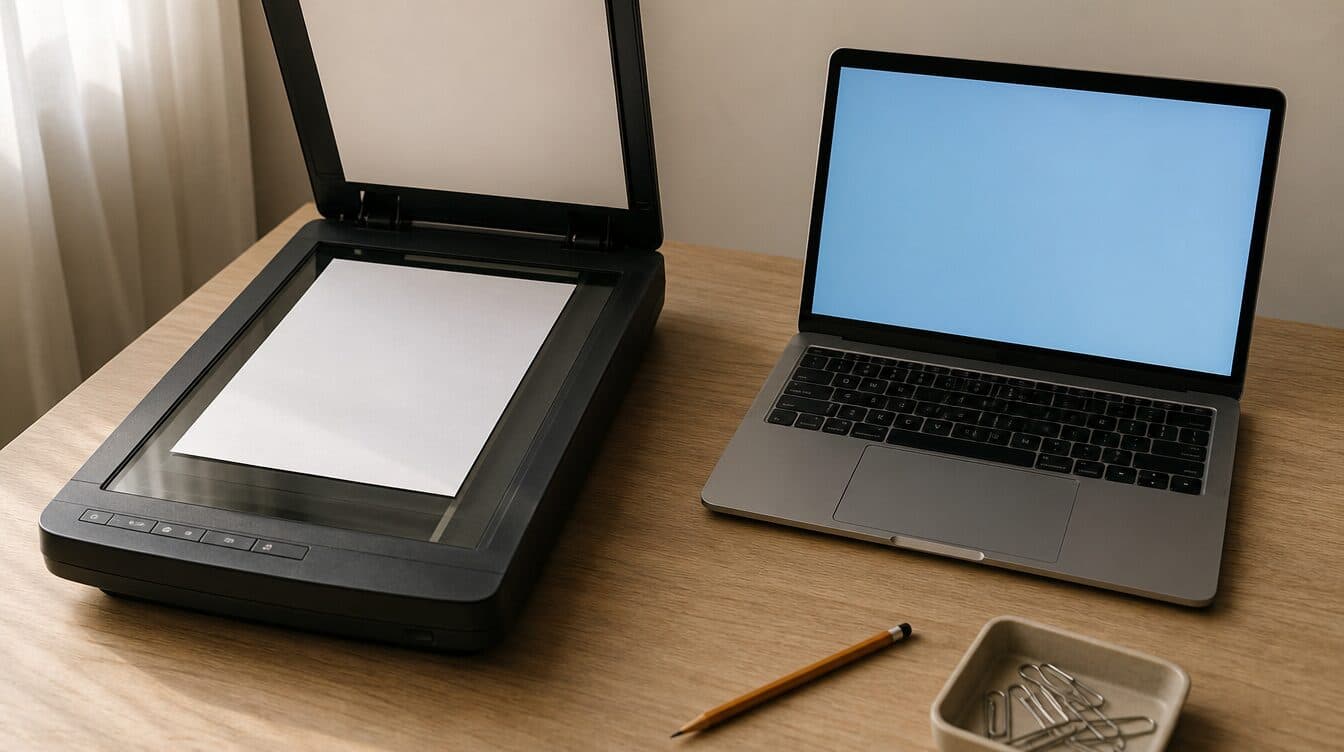
Your multifunction printer may print a test page while its scanner refuses to send a file to your laptop. In a Spring Valley home office, that distinction matters: printing and scanning can rely on different apps, permissions, and network discovery steps. Here is a practical way to narrow the problem without repeatedly resetting a printer that already prints.
Start at the scanner, not the print queue
Place one ordinary sheet on the scanner glass and use the device’s copy function if it has one. A successful copy indicates the scanner can read a page locally; it does not prove that scan-to-computer is configured. If the copy fails, check the document position, lid, display messages, and any paper jam before changing software. Avoid putting an irreplaceable original through an automatic feeder until you know it feeds correctly.
Check whether the laptop can find the device
Confirm the printer and laptop are on the same home network rather than a guest network. A printer can sometimes still receive a queued print job while a separate scanning utility cannot discover it. If you recently changed a router, network name, password, or laptop, review the printer’s network settings and reconnect it using the manufacturer’s instructions. On a USB connection, check the cable and port first. Do not change router security settings or disable a computer firewall just to make a scanner appear.
If Wi-Fi itself is unreliable in parts of the house, Matt’s Wi-Fi and network setup service is relevant; an intermittent network can affect device discovery as well as printing.
Use the computer’s scanning app
On Windows, open the scanning app available for your printer or use Windows Scan when supported. On a Mac, look for the scanner in Printers & Scanners or Image Capture. Select the actual scanner, not merely a similarly named printer entry. Test one page at a modest resolution before trying a multi-page PDF. If the scanner is absent, check the manufacturer’s current software for your model and operating system. Download it from the manufacturer’s official site, not a pop-up offering a generic driver update.
Confirm where the scanned file went
A successful scan may save to Pictures, Documents, a folder chosen in the scanning app, or a cloud location, depending on the software. Check the destination shown in the app and the file type you selected. If you scanned to email from the printer’s panel, that is a separate setup involving an email account or provider; do not assume that a scan-to-computer configuration also enables scan-to-email. For private paperwork, verify the destination before sending or sharing anything.
When an in-home setup visit makes sense
If the device copies but no computer on the network finds its scanner, or scanning works on one laptop but not another, the next useful step is to compare the affected device’s connection and scanning software on-site. Matt offers printer repair and setup and serves Spring Valley. Explain whether copying works, whether printing works, and which laptop or app cannot scan; that gives a technician a more useful starting point than “the printer is broken.” You can request an appointment for help with your home setup.
Frequently asked questions
Why can I print but not scan?
Printing and scanning can use different software and discovery paths. A working print job does not confirm that the scanner is installed or reachable from your scanning app.
Should I reset the printer first?
Not as the first step. Test a local copy, confirm the network or USB connection, and check the scanning app. A reset may erase working network settings without identifying the cause.
Is scan-to-email the same as scan-to-computer?
No. Scan-to-email generally needs separate email configuration. Test the computer’s scanning app and its save location before troubleshooting an email delivery path.